In our increasingly wireless world, Bluetooth technology has become the invisible thread connecting our digital lives. From the seamless soundtrack in our wireless earbuds to the effortless file transfers between devices and the convenience of hands-free calls in the car, Bluetooth is a modern marvel until it isn’t. When that connection stutters, drops, or fails to establish altogether, it can transform from a convenience into a significant source of frustration. The cryptic nature of Bluetooth problems, where there are no wires to inspect, often leaves users feeling helpless.
This comprehensive guide is designed to be your definitive resource for diagnosing and fixing every common Bluetooth connectivity problem. We will move beyond basic “turn it off and on again” advice and delve into the root causes, providing a structured, step-by-step methodology to restore your wireless harmony. Our goal is not only to get your devices talking again but to empower you with the knowledge to prevent these issues from recurring.
Understanding the “Why”: The Core Reasons Behind Bluetooth Failures
Before we jump into the solutions, it’s crucial to understand the common culprits behind Bluetooth instability. This knowledge will help you better diagnose which solution to apply.
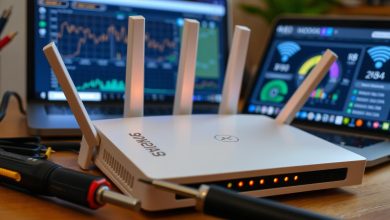
A. Wireless Interference and Congestion: The 2.4 GHz radio frequency band, which Bluetooth uses, is a crowded public highway. It’s shared by Wi-Fi routers, microwave ovens, baby monitors, cordless phones, and even some wireless security cameras. When multiple devices compete for the same radio space, signal degradation, lag, and dropouts occur.
B. Outdated or Corrupted Software Drivers: Think of drivers as translators that allow your computer’s operating system to communicate with its hardware. If the Bluetooth driver is outdated, buggy, or corrupted, the translation fails, leading to a complete breakdown in connectivity or erratic device behavior.
C. Power Management Settings: In a bid to conserve battery life, modern operating systems are often aggressive about putting components to sleep. Your Bluetooth adapter can be temporarily disabled by these power-saving features, causing unexpected disconnections.
D. Device “Memory” and Caching Issues: Devices store information about previous pairings. Sometimes, this cached data becomes corrupted, or the device simply has trouble managing its list of known gadgets, leading to failed reconnection attempts.
E. Physical Obstacles and Range Limitations: While modern Bluetooth has improved, it is still a short-range technology. Solid obstacles like walls, metal furniture, and even your own body can significantly attenuate the signal. The typical range is around 30 feet (10 meters) without obstructions, but this can drop dramatically in real-world environments.
F. Hardware Failures: Although less common, the Bluetooth hardware itself in either the transmitter (e.g., your phone) or the receiver (e.g., your headphones) can fail, requiring professional repair or replacement.
A. The Initial Rapid-Fire Diagnostic Sequence
Before diving deep, always start with this quick sequence of steps. These are the low-effort, high-impact actions that resolve a significant percentage of common Bluetooth woes.
-
The Fundamental Reboot: Power cycle both the source device (your phone, laptop, etc.) and the Bluetooth accessory (headphones, speaker, etc.). This clears temporary glitches in the device’s memory and operating system. Wait for both to power up completely before proceeding.
-
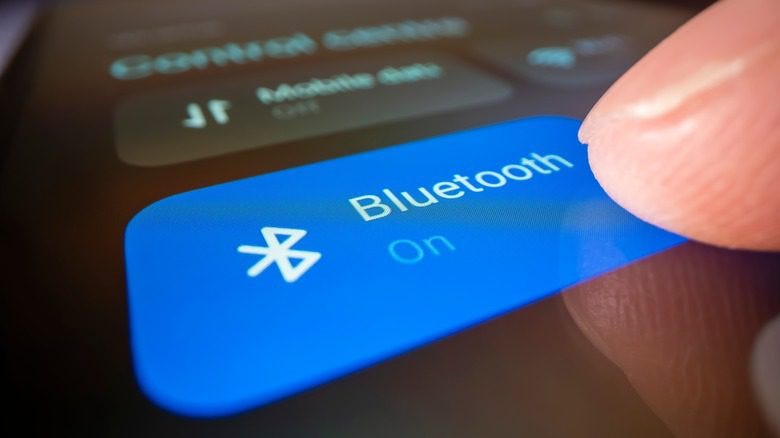
Disable and Re-enable Bluetooth: On your primary device, toggle the Bluetooth switch off, wait for 10 seconds, and then toggle it back on. This resets the Bluetooth stack without a full system reboot.
-
Verify Device Charge: A low battery can cause Bluetooth radios to function erratically or shut down to conserve remaining power. Ensure both devices are adequately charged, preferably above 20%.
-
Check Physical Proximity and Obstacles: Move the two devices closer together, ideally within 3 to 6 feet of each other, and ensure there’s a clear line of sight. Remove any potential sources of physical interference.
-
Confirm Audio Output Selection: For audio devices, it’s a common oversight. On your computer or phone, check that the sound output is actually set to your Bluetooth device and not the internal speakers or headphones jack.
B. The Methodical Troubleshooting Framework
If the rapid-fire steps didn’t work, it’s time to adopt a more systematic approach. Follow this framework in order.
B.1. Master the Pairing and Re-pairing Process
Often, the problem lies in the foundational pairing data. A fresh start is needed.
A. The “Forget This Device” Protocol: Do not just disconnect; you need to remove the device from memory.
* On Windows: Go to Settings > Bluetooth & devices. Find the problematic device, click on the three dots, and select “Remove device.” Confirm.
* On macOS: Go to System Preferences/Settings > Bluetooth. Hover over the device and click the “X” icon to remove it.
* On Android: Go to Settings > Connected devices > Connection preferences (or just Bluetooth). Tap on the settings icon next to the device name and select “Forget” or “Unpair.”
* On iOS/iPadOS: Go to Settings > Bluetooth, tap the “i” icon next to the device, and select “Forget This Device.”
B. Initiate Discovery Mode: On your Bluetooth accessory (speaker, headphones, etc.), put it into pairing mode. This process varies, but it typically involves holding down the power button or a dedicated pairing button until a light flashes rapidly (often blue and white) or you hear an audio cue. Consult the device’s manual if you are unsure.
C. The Fresh Pairing: On your primary device, scan for new Bluetooth devices. Your accessory should appear in the list. Select it to initiate a new pairing. You may need to confirm a passkey (often “0000” or “1234”).
B.2. Conquer Wireless Interference
If your connection is unstable, choppy, or has a short range, interference is a prime suspect.
A. Identify and Relocate 2.4 GHz Sources: The most common culprit is your Wi-Fi router. If possible, change your Wi-Fi band from 2.4 GHz to the less congested 5 GHz band for compatible devices. This single action can dramatically improve Bluetooth performance.
B. Create Physical Space: Move your Bluetooth devices away from other electronics, especially USB 3.0 ports, monitors, power adapters, and microwave ovens, which are notorious for generating electromagnetic noise.
C. Change the Bluetooth Frequency Channel (Advanced): Some advanced Bluetooth audio devices, like certain transmitters, allow you to manually change the frequency channel to avoid conflict. This is a less common setting but worth exploring in dedicated apps or manufacturer software.
B.3. Update and Manage Your Software Ecosystem
Outdated software is a leading cause of hardware incompatibility.
A. Update Your Operating System: Ensure your Windows, macOS, Android, or iOS device is running the latest version. OS updates frequently include critical bug fixes and driver improvements for Bluetooth.
B. Update Bluetooth Drivers (Windows):
* Method 1 (Automatic): Right-click the Start button, select Device Manager. Expand the “Bluetooth” section. Right-click on your Bluetooth adapter (e.g., Intel, Qualcomm, Realtek) and select “Update driver.” Choose “Search automatically for drivers.”
* Method 2 (Manufacturer’s Website): If the automatic search fails, visit the website of your computer’s manufacturer (Dell, HP, Lenovo, etc.) or the component manufacturer (Intel) and download the latest Bluetooth driver directly from their support page. This is often more reliable.
C. Update Firmware on Accessories: High-end Bluetooth accessories like headphones, speakers, and mice often receive firmware updates that improve stability and connectivity. Check the manufacturer’s website or their dedicated mobile app (e.g., Sony’s Headphones Connect, Jabra Sound+) for any available updates.
B.4. Tame the Power Management Beast
Stop your system from turning off your Bluetooth adapter to save power.
A. On Windows:
* Go to Device Manager.
* Expand “Bluetooth,” right-click your Bluetooth adapter, and select “Properties.”
* Go to the “Power Management” tab.
* Uncheck the box that says “Allow the computer to turn off this device to save power.”
* Click “OK.”
B. On macOS:
* macOS manages power more opaquely, but you can prevent your Mac from sleeping. Go to System Preferences > Energy Saver (on desktops) or Battery (on laptops) and adjust the sleep settings to be less aggressive when you need a stable Bluetooth connection.
B.5. Execute Deeper System Resets
When all else fails, these more profound resets can clear deep-seated corruption.
A. Reset the Bluetooth Stack (Windows): This is a nuclear option for pairing data and driver states.
* Open the Settings app and go to System > Troubleshoot > Other troubleshooters.
* Run the “Bluetooth” troubleshooter and follow any prompts.
* Alternatively, in Device Manager, right-click and “Uninstall device” for your Bluetooth adapter. Check the box that says “Delete the driver software for this device” if available. Then, restart your computer. Windows will attempt to reinstall a fresh, default driver upon reboot.
B. Reset Network Settings (Mobile): This will erase all Wi-Fi passwords, Bluetooth pairings, and cellular settings, so use it as a last resort.
* On Android: Settings > System > Reset options > Reset Wi-Fi, mobile & Bluetooth.
* On iOS: Settings > General > Transfer or Reset [Device] > Reset > Reset Network Settings.
C. Platform-Specific Solutions and Quirks
Each operating system has its own unique set of Bluetooth challenges.
C.1. Troubleshooting Bluetooth on Windows
Windows is powerful but can be complex. Here are specific fixes:
A. Run the Built-in Troubleshooter: Windows includes a dedicated tool. Go to Settings > Update & Security > Troubleshoot and run the “Bluetooth” troubleshooter.
B. Check Airplane Mode: Ensure Airplane Mode is turned off, as it disables all wireless radios, including Bluetooth.
C. The “Bluetooth Support Service”: Verify this critical service is running.
* Press Win + R, type services.msc, and press Enter.
* Scroll down to find “Bluetooth Support Service.”
* Right-click it, select “Properties.”
* Set the “Startup type” to “Automatic” and ensure the “Service status” is “Running.” Click “OK.”
C.2. Troubleshooting Bluetooth on macOS
Apple’s ecosystem is generally robust, but not immune to problems.
A. Reset the Bluetooth Module: Hold down the Shift + Option keys on your keyboard, then click the Bluetooth icon in the menu bar. You will see new debugging options, including “Reset the Bluetooth module.” This clears all pairing information and resets the hardware without a full restart.
B. Delete Plist Files (Advanced): Corrupted preference files can cause issues.
* Quit all applications.
* Open Finder, press Cmd + Shift + G, and type ~/Library/Preferences/.
* Locate and move these files to the Desktop: com.apple.Bluetooth.plist and any files starting with com.apple.bluetooth....
* Restart your Mac. New, clean preference files will be generated. If the problem is resolved, you can delete the old files from your Desktop.
C.3. Troubleshooting Bluetooth on Android & iOS
Mobile devices have their own nuances.
A. Clear Bluetooth Cache (Android):
* Go to Settings > Apps.
* Show system apps (this option is usually in the app list’s menu).
* Find “Bluetooth” or “Bluetooth Share” in the list.
* Tap on it, then tap “Storage & cache.”
* Tap “Clear Cache.” (Avoid “Clear Storage” or “Clear Data” unless you are prepared to re-pair all devices).
B. Forget and Re-pair (iOS): iOS is generally very stable, but the “Forget This Device” and re-pair process is the most effective fix for persistent connection issues with specific accessories like AirPods or car stereos.
D. When to Suspect a Hardware Failure
If you have exhausted every software and settings-based solution and the problem persists, especially if it’s isolated to a single device, hardware failure is a possibility.
A. Test with Multiple Devices: Can you pair your problematic headphones with another phone or laptop? If they work fine elsewhere, the problem is with your original source device. If they fail to connect to any device, the headphones are likely faulty.
B. Check the Bluetooth Adapter (on PCs): For desktop computers or some laptops, the Bluetooth module might be a separate, replaceable card or a cheap USB dongle. If you’ve confirmed the accessory works on other devices, replacing the internal card or purchasing a new USB Bluetooth 5.0+ dongle is an inexpensive and effective solution.
C. Seek Professional Support: If the device is still under warranty, contact the manufacturer’s support. They may have access to proprietary diagnostic tools and can authorize a repair or replacement.
Conclusion: Regaining Your Wireless Freedom
Bluetooth connectivity issues, while frustrating, are rarely insurmountable. By approaching the problem logically starting with simple reboots, moving through systematic pairing and interference management, and finally addressing deep-seated software and potential hardware faults you can diagnose and resolve the vast majority of problems. This guide has equipped you with a comprehensive toolkit, from quick fixes to advanced resets, applicable across all major platforms. The key is patience and a methodical process. By understanding the “why” behind the failure, you can apply the correct “how” to fix it, restoring the seamless, wireless experience that modern technology promises.