
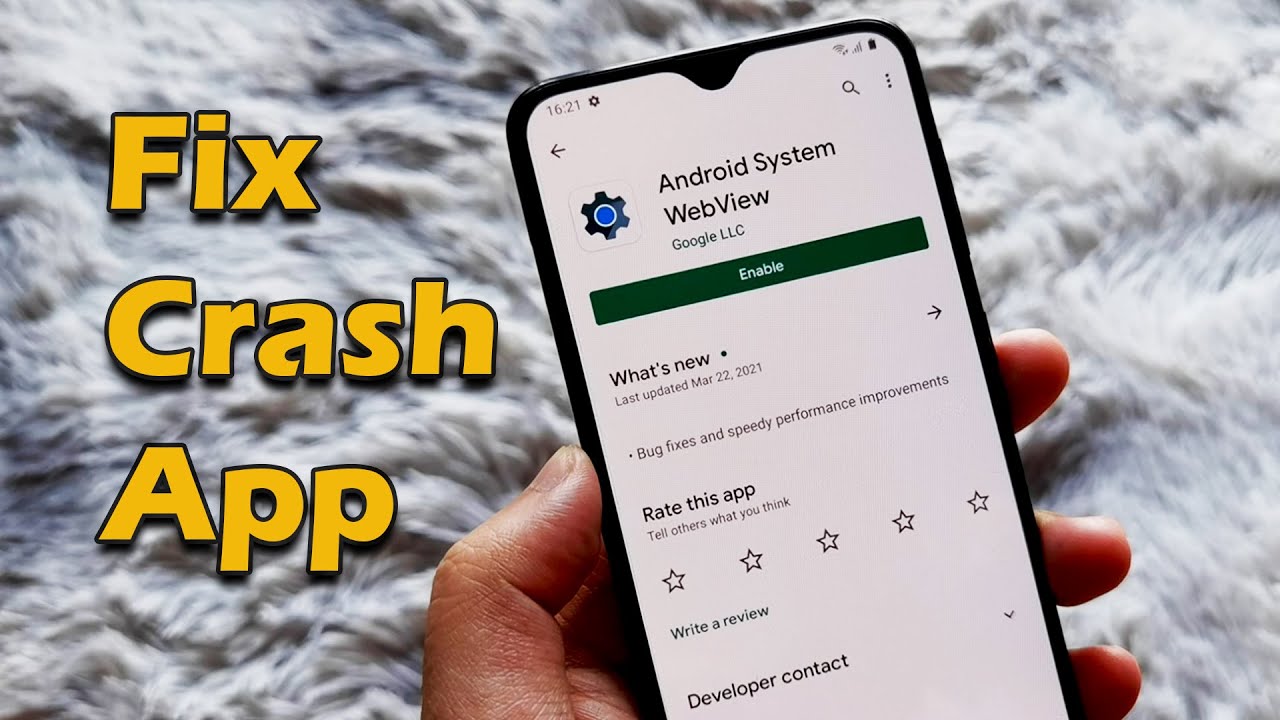
There are few modern frustrations as universal and jarring as a mobile application crash. One moment, you are deeply engrossed in a crucial task, an intense gaming session, or a heartfelt conversation. The next, your screen freezes, stutters, and you are unceremoniously dumped back to your device’s home screen, often with lost progress and a rising sense of irritation. This digital betrayal is a common plight for billions of smartphone users worldwide. However, what if these disruptions were not merely random acts of technological chaos but solvable puzzles?
This definitive guide moves beyond simple “turn it off and on again” advice. We will embark on a deep dive into the intricate world of mobile software, dissecting the root causes of application failures and providing a structured, hierarchical methodology to diagnose and permanently resolve them. Our mission is to transform you from a frustrated user into a proficient troubleshooter, equipped to tackle everything from a single misbehaving app to systemic device-wide instability. We will explore the layered architecture of mobile operating systems, the common failure points, and provide a step-by-step protocol to restore peace and functionality to your digital life.
Deconstructing the Digital Meltdown: Why Do Apps Really Crash?
Before charging into solutions, it is imperative to understand the enemy. An app crash is not a single event but the final symptom of a underlying failure within the complex interaction between the application, the operating system (OS), and your device’s hardware. Think of your smartphone as a sophisticated ecosystem; when one element is out of balance, the entire system can suffer.
A. Software Bugs and Coding Errors
At the heart of most crashes lies imperfect code. Developers, despite their best efforts, cannot anticipate every possible scenario or combination of inputs. A memory leak, where an app fails to release RAM it no longer needs, can slowly starve other processes. A null pointer exception occurs when an app tries to access a part of memory that doesn’t exist. These invisible flaws lie dormant until a specific set of actions triggers them, leading to an abrupt termination by the operating system to prevent wider damage.
B. Insufficient Device Resources (Memory and Storage)
Mobile applications are resource-hungry. When you run multiple apps simultaneously, you are taxing your device’s Random Access Memory (RAM). If the demand exceeds the available supply, the OS is forced to make difficult choices, often terminating background processes or even the app you are actively using to free up memory. Similarly, if your device’s internal storage is nearly full (typically below 10% free space), the OS lacks the “working room” it needs for caching and temporary files, which can severely impact app performance and stability.
C. Operating System and App Incompatibility
The digital world is in constant flux. A major OS update (like moving from iOS 16 to iOS 17 or Android 13 to Android 14) can introduce new frameworks and deprecate old ones. If an app developer has not updated their application to be compatible with these new system-level changes, conflicts are inevitable. The app might try to call upon a function that no longer exists or behaves differently, resulting in a crash. This is often seen immediately following a significant OS rollout.
D. Corrupted Cache and Data
To improve performance and load times, apps store temporary data in a dedicated “cache.” Over time, this cache can become bloated or, more problematically, corrupted. A single corrupted file within the cache can cause the app to malfunction every time it tries to read that data. While clearing the cache is often a fix, the underlying app data your saved preferences, login information, and progress can also become corrupted, necessitating a more drastic reset.
E. Network Instability and Server-Side Issues
Not all crashes originate on your device. For apps that rely on a constant connection to the internet (social media, streaming services, online games), network instability can be misinterpreted as a crash. Packet loss, high latency, or frequent switching between Wi-Fi and mobile data can cause the app to freeze and close. Furthermore, if the app’s backend servers are experiencing high traffic or are outright down, your app may fail to load or function correctly, presenting error messages or crashing on launch.
F. Hardware Component Failure
Though less common, failing hardware can manifest as software crashes. A faulty graphics processing unit (GPU) may struggle to render complex visuals, causing graphic-intensive games to crash. Similarly, a damaged memory chip can lead to data corruption that affects any app trying to read or write to that compromised sector of memory. These issues are often persistent across many different apps and are usually accompanied by other signs of hardware distress.
A Systematic Troubleshooting Protocol: From Simple Reboots to Nuclear Options
Armed with an understanding of the “why,” we can now methodically address the “how to fix.” Follow this protocol in sequence. Start with the simplest, least invasive steps and proceed to more comprehensive solutions only if the problem persists.
A. The Immediate First Response: Foundation Checks
When an app crashes, your first actions should be swift and simple, aimed at resolving transient glitches.
-
Close and Relaunch the Application: Swipe the app away from your recent apps list and reopen it. This terminates the current, potentially corrupted, instance and starts fresh.
-
Restart Your Smartphone: The classic advice remains potent. A full reboot clears the device’s volatile memory (RAM), terminates all background processes, and refreshes the core operating system services. This can resolve a multitude of temporary software conflicts.
-
Check Your Internet Connection: For online-dependent apps, switch between Wi-Fi and mobile data, or try connecting to a different Wi-Fi network to rule out local network issues.
-
Check for Known Outages: A quick search on platforms like Downdetector or the app’s official social media account can reveal if the problem is widespread, saving you from unnecessary troubleshooting.
B. The Software Update Cascade: Ensuring Digital Harmony
If the quick fixes fail, your next step is to ensure all software is current, creating a stable and compatible environment.
-
Update the Problematic Application: Navigate to the Apple App Store or Google Play Store and check for any pending updates for the app. Developers frequently release patches that contain bug fixes for known crash issues.
-
Update Your Device’s Operating System: Go to your device’s Settings > General > Software Update (iOS) or Settings > System > Software Update (Android). Installing the latest OS version provides critical security patches and system-level bug fixes that can resolve underlying compatibility problems.
-
Update System Apps and Components (Especially on Android): Ensure that core system components like Google Play Services are up to date, as many third-party apps rely on them to function correctly.
C. The Cleansing Phase: Resetting App State and Freeing Resources
If updates don’t work, the issue may lie with the app’s local data or your device’s resource management.
-
Clear the Application’s Cache (Android): Go to Settings > Apps > [Select the Problematic App] > Storage. Tap “Clear Cache.” This deletes temporary files without affecting your personal data like login information or saved files. This is often the most effective single step for Android.
-
Free Up Device Storage: Conduct an audit of your phone’s storage. Delete unused apps, offload photos and videos to the cloud, and clear downloaded files. Aim to keep at least 15-20% of your internal storage free.
-
Manage Your RAM and Background Processes: While modern OSes manage RAM well, actively closing unused apps from your recent menu can help. On Android, you can also enable “Don’t keep activities” in Developer Options to simulate a low-memory environment for testing, but this is not a recommended long-term setting.
D. Advanced Diagnostic and Repair Procedures
When simpler measures prove insufficient, it’s time to employ more targeted diagnostic and repair strategies.
-
Force Stop and Relaunch: Unlike simply closing the app, a “Force Stop” completely shuts down all of its background processes and services. Go to Settings > Apps > [Select App] > Force Stop. Then relaunch it. This is more thorough than swiping it away.
-
Check for Conflicting Apps: Consider if the crash started after you installed another new app. Some apps, particularly those with accessibility features, custom launchers, or aggressive battery savers, can conflict with others. Try uninstalling recent apps one by one to see if the problem resolves.
-
Reinstall the Application: This is a powerful step as it provides a completely clean slate. Uninstalling the app removes all its associated data, cache, and the application itself. A fresh install ensures you have the latest version and a pristine data directory, eliminating any deep-seated corruption.
E. The Nuclear Options: Factory Reset and Beyond
For persistent, device-wide instability that affects multiple apps, the problem is likely systemic.
-
Perform a Factory Reset: This is the ultimate solution for software problems. It erases all your data and settings, returning the device to its original out-of-the-box state.
-
CRITICAL: Before proceeding, ensure you have a complete and verified backup of all your important data (photos, contacts, messages, etc.) to the cloud or a computer.
-
After the reset, avoid restoring from a full backup immediately. Instead, reinstall your apps manually to see if the problem recurs. If it doesn’t, your old backup might have contained the corrupted data.
-
-
Seek Professional Hardware Diagnostics: If the crashes continue even after a factory reset, the issue is almost certainly hardware-related. Contact the device manufacturer’s support or a reputable repair service to run diagnostics on the phone’s memory, storage, and other internal components.
Proactive Measures: Building a Crash-Resistant Digital Environment
Prevention is always superior to cure. By adopting smart digital habits, you can significantly reduce the frequency of app crashes and ensure a smoother, more reliable mobile experience.
A. Practice Judicious App Management
Be selective about the apps you install. Download only from the official Apple App Store or Google Play Store to avoid malicious software. Regularly audit your installed apps and uninstall those you no longer use. This minimizes background resource consumption and potential conflicts.
B. Maintain a Healthy Storage Cushion
Cultivate a habit of not letting your device’s storage fill to capacity. Use cloud services like iCloud, Google Photos, or Dropbox for your media files. A perpetually full storage drive is a primary contributor to system-wide slowdowns and app instability.
C. Embrace a Consistent Update Schedule
Do not perpetually defer software updates. While it is prudent to wait a day or two after a major OS release to see if any critical bugs are reported, regularly updating your OS and apps is the single most effective way to patch security vulnerabilities and squash performance-killing bugs.
D. Monitor Your Device’s Performance and Temperature
Pay attention to your device’s behavior. If it becomes unusually hot during simple tasks, or if the battery drains rapidly, it could be a sign of a misbehaving app or failing hardware. Most modern OSes have built-in battery usage monitors that can identify apps consuming disproportionate resources.
Conclusion: Reclaiming Control Over Your Mobile Experience
The sudden, frustrating app crash is a solvable problem. It is not a mysterious flaw but a logical failure with a traceable cause. By understanding the layered reasons behind these disruptions from corrupted cache files and memory leaks to OS incompatibilities and server woes you empower yourself to move beyond passive frustration. The structured, hierarchical troubleshooting protocol outlined in this guide provides a clear path from simple restarts to comprehensive resets, ensuring you apply the right solution at the right time.
Ultimately, mastering your mobile device is about adopting a proactive and informed approach. By managing your resources wisely, keeping your software current, and understanding the fundamental principles of how your apps interact with your phone, you can transform your smartphone from a source of occasional annoyance into a model of reliability and efficiency. The power to solve that annoying app crash is, quite literally, in your hands.