In an era defined by rapid technological advancement, the relentless march of new gadgets can make a laptop feel obsolete in a handful of years. The temptation to consign that sluggish, aging machine to a dusty closet or, worse, an electronic waste bin is understandable. However, before you part with your faithful digital companion, consider a more empowering and sustainable alternative: the art of the laptop revival.
This comprehensive guide is designed to transform your perspective on that “ancient” laptop. We will move beyond mere basic tips and delve into a multi-layered strategy to breathe new life into your old hardware. From simple, cost-free software tweaks to ambitious hardware upgrades and innovative repurposing projects, we will explore every avenue to ensure your laptop not only functions but thrives in a new role. This is not just about saving money; it’s about embracing sustainability, unlocking creativity, and challenging the culture of disposable electronics.
A. Diagnosing the Patient: Understanding Your Laptop’s Ailments
Before prescribing a cure, a thorough diagnosis is essential. The symptoms of a “slow” laptop can stem from various issues, and identifying the root cause is the first step toward a successful revival.
A. Performance Bottlenecks: The classic signs include interminable boot times, applications that take minutes to open, and a system that grinds to a halt when you try to multitask.
B. Storage Limitations: Constantly receiving “low disk space” warnings? A nearly full hard drive, especially a traditional Hard Disk Drive (HDD), is a major performance killer.
C. Battery Degradation: If your laptop can’t survive unplugged for more than 30 minutes, the battery has likely reached the end of its usable life.
D. Outdated Operating System: An unsupported OS, like Windows 7 or older, no longer receives security patches, leaving you vulnerable to malware and cyberattacks.
E. Physical Wear and Tear: A cracked screen, a faulty keyboard, or a broken hinge can make the device difficult to use, but these are often repairable.
B. The Software Renaissance: Breathing New Life with Code
Often, the most impactful revivals begin not with a screwdriver, but with software. These solutions can yield dramatic improvements with minimal financial investment.
A. The Nuclear Option: A Clean Operating System Installation
Over years of use, operating systems accumulate digital clutter leftover registry entries, temporary files, and background processes from long-uninstalled software. A clean install wipes the slate completely clean, removing all this bloatware and restoring your system to its factory-fresh state. Before proceeding, this is the most critical step: BACK UP ALL YOUR IMPORTANT DATA to an external hard drive or cloud service. Once your files are safe, you have several paths forward.
B. Embrace the Lightweight: Linux as a Powerful Alternative
For older hardware, Microsoft Windows can be a resource-heavy burden. This is where Linux shines. Forget the complex, command-line-only stereotype of the past. Modern Linux distributions, known as “distros,” offer user-friendly interfaces that rival Windows and macOS.
A. What is Linux? It is a free, open-source operating system with countless variations tailored for different needs. For old laptops, we focus on “lightweight” distros.
B. Top Linux Distro Choices for Revival:
* Lubuntu: A fast and lightweight variant of Ubuntu using the LXQt desktop environment. It is designed specifically for low-spec machines.
* Xubuntu: Utilizing the Xfce desktop, it strikes a perfect balance between being lightweight and featuring a modern, visually appealing interface.
* Linux Mint Xfce Edition: Renowned for its ease of use, especially for Windows converts, the Xfce version provides a familiar feel without the performance overhead.
C. The Benefits: Beyond being free, Linux is incredibly secure against viruses and malware, and it comes with a vast repository of free software for productivity, web browsing, and media.
C. The Streamlined Suite: Optimizing Your Application Choices
Even if you stick with Windows, your choice of software can make or break the experience on an older machine.
A. The Browser Dilemma: Modern web browsers like Chrome are notorious memory hogs. Opt for leaner alternatives such as Mozilla Firefox (with its memory management improvements) or Microsoft Edge (which has become surprisingly efficient). For extremely low-spec systems, browsers like Pale Moon or Midori are designed to be ultra-lightweight.
B. Office and Productivity: Ditch the subscription-based Microsoft Office. LibreOffice and Apache OpenOffice are full-featured, completely free, and open-source office suites that can handle documents, spreadsheets, and presentations with ease.
C. The Antivirus Balance: Heavyweight security suites can consume precious resources. Consider using the built-in Windows Defender (which is now very competent) coupled with occasional scans with a lightweight, on-demand scanner like Malwarebytes.
C. The Hardware Resurrection: A Hands-On Upgrade Guide
If software optimizations aren’t enough, it’s time to look under the hood. Hardware upgrades can provide the most significant performance boost, transforming a unusable machine into a capable workhorse.
A. The Single Best Upgrade: Replacing an HDD with an SSD
This is, without exaggeration, the most impactful upgrade you can perform on any computer, old or new. Replacing a traditional spinning Hard Disk Drive (HDD) with a Solid-State Drive (SSD) is like replacing a dirt path with a six-lane highway.
-
How to Do It:
-
Identify your laptop’s model and locate a teardown or upgrade guide on iFixit or YouTube.
-
Purchase a 2.5-inch SATA SSD (they are universally compatible with older laptops).
-
Use free cloning software like Macrium Reflect Free or Clonezilla to create an exact copy of your old drive onto the new SSD.
-
Physically swap the drives. The process typically requires only a small screwdriver.
-
-
The Result: You will experience boot times reduced from minutes to seconds, near-instant application launches, and a overall system responsiveness that makes the laptop feel generations newer.
B. Boosting Multitasking: Increasing Your RAM
Random Access Memory (RAM) is your system’s short-term workspace. When it fills up, the system starts using the much slower hard drive as a overflow, causing severe lag.
-
The Check: Use a tool like CPU-Z to identify how many RAM slots your laptop has, the type of RAM (DDR2, DDR3, etc.), and what’s currently installed.
-
The Upgrade: For basic modern use (web browsing, office apps), 8GB is the sweet spot. If you’re limited to 4GB, upgrading to 8GB will provide a very noticeable improvement in smoothness, especially when multiple tabs or applications are open.
C. The Power Core: Replacing the Laptop Battery
A new battery doesn’t make your laptop faster, but it restores its fundamental purpose: portability. Replacement batteries are widely available online for most models. Ensure you purchase from a reputable seller and follow safety guidelines during installation.
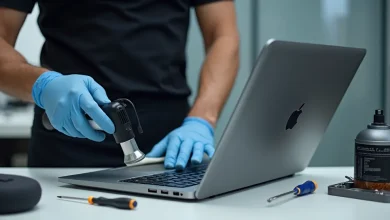
D. The Deep Clean: Eradicating Dust and Renewing Thermal Paste
Over time, dust bunnies colonize your laptop’s cooling vents and fans, causing the system to overheat. When a CPU overheats, it automatically slows down (a process called “thermal throttling”) to protect itself, leading to poor performance.
-
The Process: Carefully open the laptop’s chassis (again, refer to an online guide). Use a can of compressed air to blast dust from the heatsinks and fan.
-
Advanced Step: For laptops over five years old, the thermal paste between the CPU and its cooler can dry out and lose effectiveness. Cleaning off the old paste and applying a fresh, high-quality thermal compound can significantly reduce operating temperatures and eliminate throttling.
D. Creative Reincarnation: Giving Your Laptop a New Purpose
Perhaps after assessment, your laptop isn’t cut out to be a primary machine anymore. This is where creativity takes over. By dedicating it to a single task, you can give it a valuable and focused second life.
A. The Family Media Center
Transform your laptop into a centralized entertainment hub. Connect it to your living room TV via an HDMI cable and install Kodi or Plex Media Server. It can then stream all your movies, TV shows, music, and photos directly to your television, effectively becoming a powerful, customizable smart TV box.
B. The Reliable Network-Attached Storage (NAS) Device
With a large enough hard drive (or your new SSD), your old laptop can become a cost-effective NAS. Install a free NAS-oriented OS like OpenMediaVault or FreeNAS. This will allow you to create a personal cloud for all your devices, automatically back up photos from your phone, and stream media across your home network.
C. The Dedicated Learning and Testing Ground
The secure, isolated nature of a repurposed laptop makes it an ideal platform for learning new skills.
-
Coding Practice: Install Linux and learn command-line operations, Python scripting, or web development without fear of breaking your main computer.
-
Retro Gaming Console: Install emulation software like RetroArch to play thousands of classic games from systems like the NES, SNES, and PlayStation.
-
Home Server Experimentation: Use it to host a Minecraft server for your friends, run a personal wiki, or set up a home automation server with Home Assistant.
D. The Digital Photo Frame or Smart Home Dashboard
Prop the laptop up on a shelf, set it to display a slideshow of your favorite photos, and you have a large, high-resolution digital photo frame. Alternatively, set its browser to auto-launch your smart home dashboard (like Home Assistant or your security camera feed) and it becomes a dedicated command center for your home.

E. The Final Farewell: Responsible Recycling and Disposal
If, after all these options, your laptop is truly beyond salvage (e.g., a catastrophic hardware failure), please dispose of it responsibly. E-waste is a growing environmental crisis, filled with toxic heavy metals and hazardous materials.
A. Manufacturer and Retailer Take-Back Programs: Many companies like Apple, Dell, and HP offer free recycling programs for their old products.
B. Certified E-Waste Recyclers: Locate a certified e-waste facility in your area. These centers ensure that components are broken down safely and materials are recovered properly.
C. Data Destruction: Before recycling, physically destroy the hard drive or use data-wiping software like DBAN (Darik’s Boot and Nuke) to ensure your personal data is completely irrecoverable.
Conclusion: A Triumph of Ingenuity Over Obsolescence
Reviving an old laptop is far more than a technical exercise; it is a statement. It is a commitment to sustainability that reduces electronic waste, a financially savvy decision that saves hundreds of dollars, and a deeply satisfying project that empowers you with new skills and knowledge. Whether it becomes a zippy primary computer thanks to an SSD, a dedicated media hub for your living room, or a experimental sandbox for your tech curiosity, your ancient laptop holds immense potential. Don’t just see it as outdated technology; see it as a challenge, a canvas, and an opportunity. Unplug its potential and give it a second life worthy of its years of service.