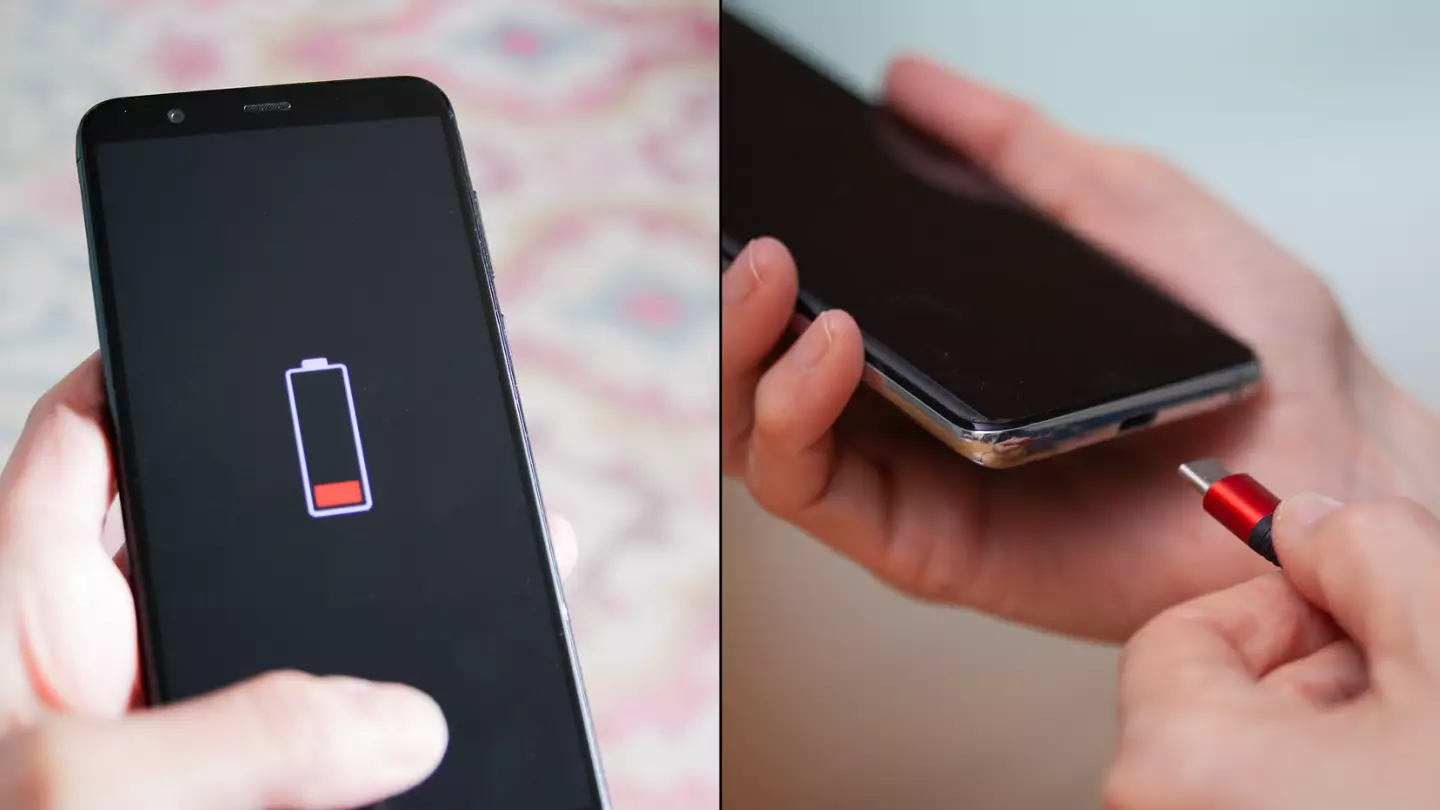
There’s a universal moment of panic that transcends borders, operating systems, and phone models: the sight of your smartphone’s battery percentage plummeting into the red zone long before the day is over. This modern anxiety, often dubbed “low battery anxiety,” is more than just an inconvenience; it’s a disruption to our daily workflow, our social connections, and our sense of security. We’ve become increasingly dependent on these pocket-sized supercomputers, and when their life force dwindles prematurely, it feels like a personal failure.
But what if the problem isn’t you, but a series of subtle, correctable settings and habits? The rapid depletion of your phone’s battery is rarely due to a single, catastrophic failure. Instead, it’s typically the cumulative effect of numerous small power drains background processes, invisible signals, and features you may not even know are active. This comprehensive guide is designed to be your definitive resource. We will move beyond the simplistic “lower your brightness” advice and delve deep into the multifaceted reasons behind battery drain. We will explore not only the immediate fixes but also the long-term strategies to understand, manage, and ultimately extend the lifespan of your most essential device. Prepare to reclaim your power and say goodbye to that constant hunt for a charging cable.
A. Demystifying the Core Culprits: Why Your Battery Dies So Fast
Before we can fix the problem, we must understand the enemy. Your smartphone’s battery is a finite reservoir of energy, and countless components are sipping from it simultaneously. Identifying the biggest drinkers is the first step to conservation.
A.1. The Display: The Unquenchable Thirst for Luminescence
The screen is, without a doubt, the single largest consumer of battery power on any smartphone. Modern displays, especially OLED and AMOLED panels, are technological marvels that produce stunning colors and deep blacks. However, this comes at a significant energy cost.
-
Brightness: The relationship between brightness and power consumption is not linear; it’s often exponential. Pushing your brightness to 100%, especially outdoors, forces the display to draw a massive amount of current. Auto-brightness can help, but it’s not always perfect.
-
Screen Timeout: A long screen timeout period (e.g., 2-5 minutes) means your display stays illuminated and consuming power even when you’re not actively looking at it. Those minutes add up throughout the day.
-
High Refresh Rates: Many modern phones feature 90Hz, 120Hz, or even 144Hz refresh rates, making scrolling buttery smooth. This fluidity requires the GPU and display to work nearly twice as hard as a standard 60Hz screen, resulting in a substantial battery hit.
A.2. The Radio Frenzy: Your Phone’s Constant Search for a Signal
Your phone is fundamentally a communication device, and its radios (Cellular, Wi-Fi, Bluetooth, GPS) are perpetually working to keep you connected. This constant signaling is a major, yet often overlooked, drain.
-
Poor Cellular Signal: This is a silent battery killer. When your signal is weak (one or two bars), your phone’s modem must boost its power output significantly to maintain a stable connection to the cell tower. This continuous struggle in low-signal areas, like basements or rural locations, can deplete your battery at an alarming rate.
-
Location Services (GPS): While incredibly useful for navigation and location-based apps, GPS is a power-hungry technology. It requires communication with multiple satellites and significant processor cycles to triangulate your position. When left on indefinitely for apps that don’t genuinely need it, it becomes a persistent drain.
-
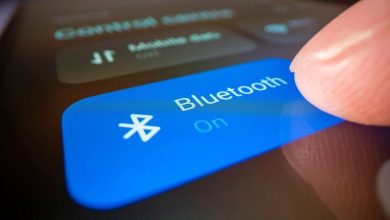
Wi-Fi and Bluetooth Scanning: Even when you’re not connected to a network, your phone’s settings may allow it to continually scan for available Wi-Fi networks and Bluetooth devices. This background activity, while minimal per scan, accumulates over time.
A.3. The Background Cacophony: Apps Running Amok When You’re Not Looking
You might close an app, but that doesn’t mean it’s stopped working. Many apps are designed to run processes in the background, updating content, fetching new data, and checking for notifications.
-
Background App Refresh: This feature allows apps to update their content in the background so that when you open them, the latest information is ready. While convenient, it means social media, news, and email apps are constantly waking your phone’s CPU and using data, chewing through your battery.
-
Push Notifications: Every time a notification arrives, it causes a small wake-up event for your phone’s processor and display. A high volume of notifications from multiple apps throughout the day creates a death by a thousand cuts for your battery.
-
Rogue and Buggy Apps: Sometimes, a single app can be the primary culprit. A poorly coded app, or one with a bug, can get stuck in a loop, causing the CPU to run at high capacity indefinitely. This manifests as a hot phone and a rapidly draining battery.
A.4. The Inevitable Foe: The Natural Degradation of Lithium-ion Batteries
It’s crucial to acknowledge the physical reality of your battery. All lithium-ion batteries, the standard in smartphones, have a finite lifespan. They degrade with each charge cycle (a cycle being a full 0% to 100% charge).
-
Chemical Aging: Over time, the chemical components inside the battery that store and release energy break down. This reduces the battery’s maximum capacity, meaning a 100% charge today holds less actual energy than it did when the phone was new.
-
Environmental Factors: Heat is the arch-nemesis of lithium-ion batteries. Consistently exposing your phone to high temperatures (e.g., leaving it in a hot car, playing intensive games for long periods) accelerates the chemical degradation process, permanently reducing its capacity much faster.
B. A Step-by-Step Action Plan to Conquer Battery Drain
Now that we understand the “why,” let’s implement the “how.” This actionable plan is structured to tackle the most significant drains first.
B.1. Taming the Display Beast
The display is your biggest lever for saving power. Implement these changes for an immediate impact.
-
A. Embrace Adaptive Brightness: Don’t leave your brightness on a static, high setting. Use the adaptive or auto-brightness feature, which uses the ambient light sensor to adjust the screen to an appropriate level. Manually lower it whenever you are in a dimly lit environment.
-
B. Shorten the Screen Timeout: Reduce your screen timeout setting to 30 seconds or, at most, 1 minute. This ensures the display turns off quickly when not in use, saving substantial power over a day.
-
C. Leverage Dark Mode: If you have an OLED/AMOLED screen, Dark Mode is your best friend. These displays can turn off individual pixels to show true black. By using dark backgrounds, you are effectively turning off large portions of your screen, leading to significant battery savings.
-
D. Evaluate the Refresh Rate: If your phone allows it, consider switching from a high refresh rate (e.g., 120Hz) to a standard rate (60Hz) for general use. The difference in smoothness is noticeable, but the battery savings can be dramatic, often adding hours of extra screen-on time.
B.2. Mastering Your Connectivity and Location Services
Gaining control over your phone’s radios is like plugging hidden energy leaks.
-
A. Switch to Airplane Mode in Low-Signal Areas: If you know you’ll be in an area with a terrible cellular signal (like a subway or a remote building), manually enable Airplane Mode. This stops the cellular modem from its power-intensive search. You can then manually re-enable Wi-Fi if available.
-
B. Be Strategic with Wi-Fi and Bluetooth: Turn off Wi-Fi and Bluetooth when you are not actively using them. Disable the settings that allow “Wi-Fi Scanning” and “Bluetooth Scanning” for improved location accuracy, as these force the radios to remain active.
-
C. Audit and Restrict Location Permissions: Go through your location services settings app-by-app. Ask yourself: “Does this app truly need my location?” For most apps, set the permission to “While Using the App” instead of “Always.” For apps like games or streaming services, consider “Never.” This prevents apps from tracking you in the background.
B.3. Imposing Order on Background App Activity
Reign in the chaotic background processes that sap your battery without your knowledge.
-
A. Disable or Restrict Background App Refresh: Both iOS and Android offer system-wide controls for Background App Refresh. You can turn it off entirely or, more strategically, disable it for specific, non-essential apps. Your messaging apps will typically use push notifications instead, so they won’t be affected.
-
B. Manage Your Notifications: Conduct a notification audit. Disable notifications for apps that are not crucial. Every unnecessary notification that lights up your screen consumes a small amount of power. Reducing this noise not only saves battery but also improves your digital wellbeing.
-
C. Identify and Eliminate Rogue Apps: Use the built-in battery usage tools in your phone’s settings. This section will show you exactly which apps and services are consuming the most power. If you see an app with a disproportionately high percentage of usage that doesn’t align with your active use, it’s a prime suspect. Uninstall it or severely restrict its permissions.
B.4. Optimizing System-Wide Settings and Features
Beyond apps and displays, system-level features can be optimized for maximum efficiency.
-
A. Manage Push Email Fetching: If you use a native email app, check its fetch settings. Having it set to “Push” (checking for new emails instantly) is convenient but demanding. Switching to a manual “Fetch” schedule (e.g., every 30 minutes or hourly) or even manual checking can save a surprising amount of battery.
-
B. Limit Widgets and Live Wallpapers: While visually appealing, active widgets on your home screen (especially those that update weather, news, or social feeds) and live, animated wallpapers require constant processing and data fetching, contributing to background drain. Use them sparingly.
-
C. Utilize Power Saving Modes: Don’t wait until you’re at 20% to use your phone’s power-saving or low-power mode. These modes are incredibly effective, as they systematically throttle CPU performance, reduce visual effects, limit background activity, and lower screen refresh rates. Activating it when you know you’ll need extended battery life is a proactive and powerful strategy.
C. Long-Term Battery Health and Maintenance
Saving battery today is great, but preserving your battery’s capacity for the years to come is even better. These habits focus on the long-term health of your device.
C.1. The Art and Science of Charging
Forget the old myths about batteries. Here’s what modern science tells us.
-
A. Avoid Extreme Depletion and Full Charges: Lithium-ion batteries are most stressed at the extremes (0% and 100%). The ideal practice is to keep your battery between 20% and 80% as often as possible. Think of it as avoiding both starvation and overeating.
-
B. Embrace “Topping Off”: Contrary to popular belief, frequent, small charges throughout the day are better for the battery’s long-term health than a single deep discharge followed by a full recharge.
-
C. Use Overnight Charging Wisely: Modern phones are smart enough to stop charging at 100% to prevent overcharging. However, leaving it plugged in at 100% for many hours, especially if it gets warm, can still contribute to long-term stress. If possible, use features like “Optimized Battery Charging” (iOS) or “Adaptive Charging” (Android) that learn your routine and delay charging past 80% until just before you wake up.
-
D. Beware of Heat While Charging: The combination of charging and heat is a recipe for rapid degradation. Never charge your phone on a soft surface like a bed or under a pillow, as this traps heat. Always charge on a hard, flat surface. Avoid using your phone for intensive tasks while it’s charging.
C.2. When to Consider a Battery Replacement
Even with perfect care, all batteries will degrade. How do you know when it’s time for a change?
-
A. Monitor Maximum Capacity: Both iOS and Android provide tools to check your battery’s maximum capacity (under Battery Health settings). Once this figure drops below 80%, it’s a clear sign that the battery can no longer hold a sufficient charge, and performance may be throttled. Replacement is highly recommended.
-
B. Observe Real-World Performance: If your phone consistently shuts down unexpectedly at 20% or 30% charge, this is a classic symptom of a degraded battery that can no longer deliver stable voltage under load.
D. Advanced Troubleshooting: When the Basics Aren’t Enough
If you’ve implemented all the standard advice and your battery life is still abysmal, it’s time to look deeper.
D.1. The Nuclear Option: Factory Reset
A factory reset erases all your data and settings, returning the phone to its original out-of-the-box state. This can eliminate deep-seated software glitches, corrupted caches, or problematic settings that are causing persistent drain. Crucially, ensure you have a complete backup before proceeding. After the reset, monitor the battery life before reinstalling all your apps. If the drain is gone, you can slowly reinstall apps to identify the culprit.
D.2. Investigating Operating System Bugs
Sometimes, the issue lies with the operating system itself. A new OS update can occasionally introduce bugs that cause excessive battery drain. Check online forums and community discussions for your specific phone model and OS version. If it’s a widespread issue, you may have to wait for a patch from the manufacturer.
Conclusion: Empowering Your Digital Life
The battle against rapid battery drain is not a single action but a continuous practice of mindful management. It’s about understanding the complex ecosystem of hardware and software within your device and making strategic choices that align with your needs. By systematically addressing the display, connectivity, background processes, and charging habits, you are no longer a passive victim of a dying battery. You are an empowered user in control of your device’s energy.
The goal is not to turn off every feature and live with a dim, disconnected brick, but to intelligently allocate your battery’s precious resources to the functions that truly matter to you. Implement these strategies, and you will not only extend the daily life of your charge but also the long-term health of your device, ensuring it remains a reliable companion for years to come. So take charge, optimize your settings, and enjoy the freedom of a phone that lasts.