
There are few modern frustrations as universally grating as a slow Wi-Fi connection. You’re in the middle of a crucial video call, and your video freezes into a pixelated mess. You’re about to clinch a victory in an online game, and suddenly, you’re lagging out. You’ve settled in for a movie night, only to be greeted by the infuriating buffering wheel. In our hyper-connected world, a sluggish Wi-Fi network doesn’t just feel like an inconvenience; it feels like a personal affront.
Many of us instinctively blame our Internet Service Provider (ISP) at the first sign of trouble. While they can sometimes be the culprit, the reality is often far more complex and, fortunately, within your power to fix. Your home network is a dynamic ecosystem, a delicate dance between hardware, software, physical obstructions, and competing digital demands. Understanding this ecosystem is the key to transforming your sputtering connection into a robust, high-speed pipeline.
This comprehensive guide is designed to be your definitive resource. We will move beyond the simplistic “turn it off and on again” advice and delve deep into the multifaceted reasons behind poor Wi-Fi performance. We will systematically explore, diagnose, and provide actionable solutions for every common—and not-so-common—cause of a slow wireless network. Prepare to embark on a journey that will empower you to take full control of your home’s digital heartbeat.
A. The Foundational Pillars: Understanding How Wi-Fi Actually Works
Before we can diagnose the problems, it’s essential to understand the basic principles of how Wi-Fi operates. Think of it as understanding the rules of the road before you can become a master mechanic.
A.1. The Invisible Highway: Radio Waves and Frequencies
Wi-Fi is not magic; it’s a technology that uses radio waves to transmit data through the air, much like a radio or a cell phone. These waves travel on specific frequency bands, primarily:
-
2.4 GHz Band: This is the older, more crowded band. Its key advantage is range; it can travel farther and penetrate solid objects like walls more effectively. However, it has fewer channels and is susceptible to interference from a multitude of common household devices, including microwaves, Bluetooth speakers, and baby monitors.
-
5 GHz Band: This band is faster and offers more channels, which significantly reduces congestion and interference. Its main trade-off is a slightly shorter range and poorer wall-penetrating ability compared to 2.4 GHz.
-
6 GHz Band (Wi-Fi 6E): The newest addition, available on modern routers, offers a massive, wide-open highway for data. It provides blistering speeds with almost no congestion, but it requires compatible devices (Wi-Fi 6E) and has the shortest range of the three.
A.2. Your Digital Post Office: The Router’s Role
Your router is the unsung hero of your home network. It acts as a central post office, managing all incoming and outgoing data traffic. It receives data from the internet via your modem and routes it wirelessly to your specific devices (laptops, phones, smart TVs). A powerful, modern router can efficiently manage this traffic, while an outdated one will become a bottleneck, causing delays and slowdowns for everyone.
A.3. The Two-Way Street: Download vs. Upload Speeds
When you test your internet speed, you typically see two numbers:
-
Download Speed: This is how fast you can pull data from the internet to your device (e.g., streaming movies, loading websites, downloading files). This is usually the most advertised number.
-
Upload Speed: This is how fast you can send data from your device to the internet (e.g., video conferencing, posting photos to social media, uploading a video to YouTube). For many modern activities like remote work and content creation, a robust upload speed is just as critical as download speed.
B. The Comprehensive Diagnosis: Uncovering the 12 Culprits of Slow Wi-Fi
Now that we understand the fundamentals, let’s systematically investigate the most common reasons your Wi-Fi is underperforming.
B.1. Physical Location and Router Placement
This is, without a doubt, one of the most common and easily rectifiable mistakes. Your router’s placement is not an afterthought; it’s a critical strategic decision.
-
The Problem: Tucking the router away in a distant closet, on the floor in a corner, or inside a cabinet. Walls, especially those made of concrete, brick, or metal, are significant obstacles. Large furniture, mirrors, and appliances like refrigerators and microwaves can also block or reflect signals.
-
The Solution: Place your router in a central, elevated location in your home, like on a shelf or a desk. Keep it out in the open, away from obstructions. The goal is to create a clear, radial “sphere” of coverage throughout your living space.
B.2. The Age and Capability of Your Router
Technology evolves rapidly. A router that was top-of-the-line five or eight years ago is likely obsolete by today’s standards.
-
The Problem: Older routers support older Wi-Fi standards (like 802.11g or 802.11n) which are incapable of delivering the speeds offered by modern fiber or cable internet plans. They also lack advanced features like MU-MIMO (Multi-User, Multiple-Input, Multiple-Output) that allow them to communicate with multiple devices simultaneously without slowdowns.
-
The Solution: If your router is more than 3-4 years old, it’s worth investigating an upgrade. Look for a router that supports at least Wi-Fi 5 (802.11ac), but ideally Wi-Fi 6 (802.11ax) or Wi-Fi 6E for future-proofing. These newer standards offer vastly improved speed, range, and device handling.
B.3. Rampant Network Congestion and Bandwidth Hogs
Your internet bandwidth is a shared resource. Every device connected to your network is a potential claimant to that finite data stream.
-
The Problem: You may not realize how many devices are actively using your Wi-Fi. Beyond phones and laptops, consider smart TVs, gaming consoles, tablets, smart speakers (Alexa, Google Home), security cameras, smart thermostats, and even smart light bulbs. If one person is streaming a 4K movie on Netflix, another is downloading a large video game update, and several security cameras are uploading high-resolution footage, there will be very little bandwidth left for anyone else.
-
The Solution:
-
Conduct a device audit. Log into your router’s admin panel to see a list of all connected devices and disconnect any that are unknown or not in use.
-
Schedule heavy downloads for off-peak hours (e.g., overnight).
-
Use Quality of Service (QoS) settings on your router, if available. This feature allows you to prioritize traffic for specific applications (e.g., Zoom calls, online gaming) over others (e.g., file downloads), ensuring critical tasks get the bandwidth they need.
-

B.4. Interference from Other Electronic Devices
Your Wi-Fi signal is competing for airspace in a crowded electronic neighborhood.
-
The Problem: The 2.4 GHz band is particularly vulnerable. Common sources of interference include:
-
Microwave ovens
-
Cordless phones
-
Bluetooth devices (speakers, headphones, mice)
-
Baby monitors
-
Neighboring Wi-Fi networks
-
-
The Solution: Where possible, connect devices that require stable, high-speed connections (like laptops and smart TVs) to the less-congested 5 GHz band. You can also use a Wi-Fi analyzer app on your smartphone to see which channels are the least crowded and manually switch your router’s channel in its settings.
B.5. Outdated Firmware and Network Drivers
Software is the brain of your hardware. Outdated software can lead to security vulnerabilities and performance issues.
-
The Problem: Router manufacturers release firmware updates to fix bugs, patch security holes, and sometimes even improve performance. Similarly, the network adapter drivers on your computer need to be kept up to date.
-
The Solution: Regularly check for firmware updates in your router’s admin interface (often under “Administration” or “Advanced” settings). For your computers, set network drivers to update automatically or periodically check the manufacturer’s website.
B.6. Internet Service Provider (ISP) Throttling and Plan Limitations
Sometimes, the problem genuinely lies with your internet provider.
-
The Problem: Some ISPs engage in a practice called “throttling,” where they intentionally slow down your connection during certain activities, like heavy streaming or torrenting, especially during peak usage times. Furthermore, you may simply be on an internet plan that does not provide enough speed for your household’s current needs.
-
The Solution: Use a reputable internet speed test (like Ookla’s Speedtest.net or Fast.com) connected directly to your modem via an Ethernet cable. This bypasses your Wi-Fi and tests the raw speed coming into your home. If the wired speed is consistently significantly lower than what you’re paying for, it’s time to call your ISP. Be aware of data caps, as exceeding them can also result in throttled speeds.
B.7. The Limitations of a Single Router in a Large Home
Wi-Fi signals have a finite range. A single router, no matter how powerful, will struggle to cover a very large home or one with multiple floors and thick walls.
-
The Problem: You experience “dead zones”—areas in your home where the Wi-Fi signal is weak or non-existent. This manifests as slow speeds or constant disconnections in certain rooms.
-
The Solution: This is where you need to consider expanding your network’s coverage. We will explore the solutions for this in detail in the next section.
B.8. Security Breaches and Unwanted Guests
An unsecured network is an open invitation for neighbors or malicious actors to leech off your bandwidth.
-
The Problem: If you have a weak password or are using outdated security protocols (like WEP), it’s relatively easy for someone to connect to your network without your knowledge. This unauthorized usage can consume a significant portion of your bandwidth.
-
The Solution: Always use a strong, unique password for your Wi-Fi network. Ensure your router’s security setting is set to at least WPA2, or preferably WPA3, which is the current gold standard.
B.9. Hardware Failure in Modem or Router
Like any electronic device, routers and modems can degrade over time or suffer from internal hardware failures.
-
The Problem: Intermittent connectivity, frequent need to reboot, and progressively worsening performance can be signs of a failing device. Overheating can also cause components to throttle performance to prevent damage.
-
The Solution: Ensure your router and modem are in a well-ventilated area. If your equipment is very old and showing consistent signs of failure, replacement is the most reliable course of action.
B.10. Background Applications and Device-Specific Issues
The problem might not be your network, but a specific device.
-
The Problem: Your computer or phone might be running background processes that are consuming bandwidth. This includes cloud backup services (like iCloud or Google Drive syncing), automatic software updates, or even malware.
-
The Solution: On computers, check the task manager or activity monitor for network usage. On phones, check the data usage settings to see which apps are the most data-hungry. Run a reputable antivirus or anti-malware scan to rule out infections.
B.11. The Wrong Band for the Wrong Task
As mentioned, 2.4 GHz and 5 GHz have different strengths.
-
The Problem: You’ve connected a device that needs high speed (like a 4K streaming stick) to the long-range but slower 2.4 GHz band, resulting in buffering. Conversely, you’ve connected a low-bandwidth device (like a smart thermostat) on the other side of the house to the 5 GHz band, causing it to disconnect frequently.
-
The Solution: Manually assign devices to the appropriate band. Connect speed-critical devices to 5 GHz when they are in range. Reserve the 2.4 GHz band for devices that are far from the router or that require very little bandwidth.
B.12. DNS Server Inefficiency
The Domain Name System (DNS) is like the phonebook of the internet. When you type “google.com,” your device contacts a DNS server to find its numerical IP address.
-
The Problem: Your ISP’s default DNS servers can sometimes be slow or unreliable, adding a delay to the initial connection to every website you visit.
-
The Solution: You can manually change your DNS settings on your router or individual devices to use faster, public DNS servers like Google DNS (8.8.8.8, 8.8.4.4) or Cloudflare DNS (1.1.1.1). This can often result in snappier browsing experiences.
C. Advanced Solutions: Eradicating Dead Zones and Future-Proofing Your Network
If you’ve addressed the common culprits and still have issues, particularly with coverage, it’s time to invest in a more advanced network infrastructure.
C.1. Wi-Fi Extenders/Repeaters: A Flawed Stopgap
A Wi-Fi extender picks up your existing Wi-Fi signal and rebroadcasts it, effectively lengthening its range.
-
Pros: Inexpensive and easy to set up.
-
Cons: They often create a separate, and usually slower, network name (SSID). They can also halve the available bandwidth because they must receive and retransmit every packet of data. They are generally not recommended for high-bandwidth activities.
C.2. Powerline Adapters: The Wired Solution Without New Wires
Powerline networking uses your home’s existing electrical wiring to transmit data.
-
How it works: You plug one adapter into a wall outlet near your router and connect it via Ethernet cable. You then plug a second adapter into an outlet in the room with a dead zone and connect your device to it (or use its built-in Wi-Fi).
-
Pros: Provides a more stable, wired-like connection over distance. Performance is generally better than a Wi-Fi extender.
-
Cons: Performance depends on the quality and age of your home’s electrical wiring. They often need to be on the same electrical circuit to work best.
C.3. Mesh Wi-Fi Systems: The Ultimate Whole-Home Solution
This is the modern, professional-grade solution for large or challenging homes.
-
How it works: A mesh system consists of a main router unit that connects to your modem and one or more satellite “nodes” that you place around your home. These nodes communicate with each other seamlessly, creating a single, blanket-like Wi-Fi network that covers your entire property. Your devices automatically and seamlessly connect to the strongest node as you move around.
-
Pros: Single network name (SSID), seamless roaming, excellent coverage, easy management via a smartphone app, and often include advanced security features.
-
Cons: More expensive than a traditional router or extender.
D. Your Action Plan: A Step-by-Step Troubleshooting Checklist
Don’t feel overwhelmed. Follow this systematic checklist to diagnose and fix your slow Wi-Fi.
Step 1: Establish a Baseline.
Run a wired speed test by connecting a computer directly to your modem with an Ethernet cable. This tells you the maximum speed your ISP is delivering.
Step 2: The Simple Reboot.
Power cycle your modem and router. Unplug them from the power source, wait for 30 seconds, plug the modem back in, wait for all its lights to stabilize, and then plug the router back in.
Step 3: Check and Optimize Placement.
Move your router to a central, open, and elevated location. Ensure it’s not surrounded by clutter or large appliances.
Step 4: Conduct a Device and Interference Audit.
Log into your router and review connected devices. Disconnect any unknowns. Use a Wi-Fi analyzer app to check for channel congestion and switch to a clearer channel.
Step 5: Update Everything.
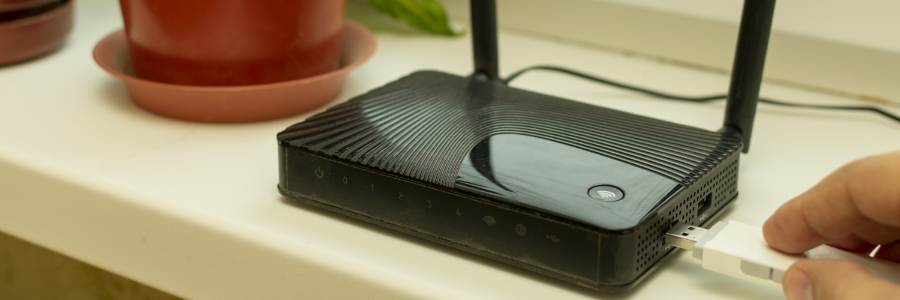
Check for and install firmware updates for your router. Update the network drivers on your computers and other devices.
Step 6: Secure Your Network.
Confirm you are using WPA2/WPA3 security and change your Wi-Fi password to a strong, unique one.
Step 7: Test on Different Bands and Devices.
Connect a problematic device to the 5 GHz band and see if performance improves. Test the same activity on a different device to isolate the problem.
Step 8: Contact Your ISP.
If, after all these steps, your wired speed test is still consistently slow, the issue is likely with your ISP’s service or infrastructure. This is the time to call them for support or to discuss upgrading your plan.
Step 9: Consider Hardware Upgrades.
If your router is old, your home is large, or you have persistent dead zones, invest in a new Wi-Fi 6 router or a whole-home Mesh Wi-Fi system.
Conclusion: Reclaim Your Digital Freedom
A slow Wi-Fi connection is a solvable problem. It requires moving from a place of frustration to a place of understanding. By comprehending the intricate factors that govern your wireless network from the physical placement of your router to the invisible congestion in the airwaves you arm yourself with the knowledge to enact real change. You are no longer at the mercy of the spinning buffering icon. By systematically working through this guide, you can diagnose the root cause, implement the correct solution, and finally achieve the fast, reliable, and powerful Wi-Fi network that your digital life deserves.