In our fast-paced digital era, a laptop is far more than a simple tool; it is the command center for our professional endeavors, the portal to our social worlds, and the hub of our entertainment. We demand relentless performance and unwavering reliability. Yet, many users treat their laptops as disposable appliances, running them into the ground until slowdowns, crashes, or hardware failures bring their digital lives to a screeching halt. The truth is, a laptop is a significant investment, and protecting that investment requires a proactive, informed approach to maintenance.
This comprehensive guide moves beyond basic “restart it regularly” advice. We will delve into a holistic strategy encompassing both hardware and software, providing you with the knowledge to not only extend your laptop’s lifespan but also to ensure it operates at peak performance throughout its life. By understanding and implementing these essential modern maintenance and optimization strategies, you can prevent data loss, save money on costly repairs, and enjoy a smoother, more efficient computing experience.
Section A: Foundational Software Hygiene and Performance Optimization
The digital environment of your laptop is where most performance issues begin. A cluttered, unoptimized operating system is the primary culprit behind sluggish behavior. Let’s build a solid software foundation.
A. The Art of Strategic Storage Management
A near-full hard drive or Solid State Drive (SSD) is one of the most common causes of system slowdown. The operating system requires free space for temporary files, caches, and virtual memory. When space is critically low, everything grinds to a halt.
-
Embrace the Cloud and External Storage: Do not use your primary drive as a digital archive. Utilize cloud services like Google Drive, Dropbox, or OneDrive for documents and photos. For larger media files like videos and extensive photo libraries, invest in a reliable external hard drive. This practice not only frees up space but also serves as a crucial part of your backup strategy.
-
Conduct Regular Digital Decluttering: Schedule a monthly “clean-up day.” Use your system’s built-in tools:
-
Windows: Use Disk Cleanup to remove temporary files, system caches, and even previous Windows installation files that can take up gigabytes of space. For a more powerful tool, Storage Sense (in Windows 10/11 Settings) can automate this process.
-
macOS: The “Manage Storage” section in About This Mac offers recommendations for optimizing storage, including storing files in iCloud and automatically emptying the Trash.
-
-
Audit Your Applications: Over time, we accumulate software we no longer use. Navigate to your system’s application uninstaller (e.g., “Add or Remove Programs” in Windows) and be ruthless. Removing unused applications frees up space, removes background processes, and declutters your system registry (on Windows).
B. Mastering the Startup Process
A slow boot time is often a symptom of too many programs launching automatically at startup. These applications run in the background, consuming precious RAM and CPU cycles from the moment you log in.
-
How to Tame Startup Programs:
-
Windows: Open the Task Manager (Ctrl+Shift+Esc), and click on the “Startup” tab. Here, you will see every program configured to launch on startup. Carefully examine the list and disable any non-essential applications. You do not need your music player or messaging app to start with the OS. Focus on enabling only critical security software and drivers.
-
macOS: Go to System Preferences/Settings > Users & Groups > Login Items. You can remove or hide applications from starting up automatically here.
-
C. The Critical Role of Operating System and Driver Updates
It is tempting to perpetually click “Remind me later,” but this is a dangerous habit. Software updates are not just about new features; they are primarily about security and stability.
-
Operating System Updates: Companies like Microsoft and Apple regularly release patches to fix security vulnerabilities that hackers could exploit. These updates also often include performance improvements and bug fixes that can resolve system instability.
-
Driver Updates: Drivers are the software that allows your operating system to communicate with hardware components like your graphics card, network adapter, and chipset. Outdated drivers can cause crashes, poor performance in games or applications, and hardware malfunctions. While Windows Update handles many drivers, it’s wise to periodically check the support page of your laptop’s manufacturer (Dell, HP, Lenovo, etc.) for the latest, model-specific drivers, especially for critical components like graphics and BIOS.
D. Proactive Security: Beyond Basic Antivirus
Malware, including viruses, spyware, and ransomware, can devastate your laptop’s performance and compromise your personal data. A reactive approach is no longer sufficient.
-
Use a Reputable Security Suite: While Windows Defender has become remarkably robust, many users prefer a comprehensive third-party internet security suite that offers additional layers of protection, such as firewall management, web browsing protection, and ransomware shields.
-
Cultivate Smart Browsing Habits: Your behavior is your first line of defense. Be skeptical of unsolicited email attachments, avoid clicking on suspicious links, and only download software from official vendor websites. Use an ad-blocker to minimize exposure to malicious ads (malvertising).
-
Regular Deep Scans: Schedule a full system scan with your antivirus software weekly. A quick scan is useful, but it can miss deeply embedded threats.
Section B: Advanced Hardware Care and Physical Preservation
Your laptop’s physical well-being is just as important as its digital health. Proper hardware maintenance prevents long-term damage and ensures all components function as intended.
E. The Science and Practice of Thermal Management
Heat is the natural enemy of electronic components. Prolonged exposure to high temperatures can cause thermal throttling (where the CPU slows down to protect itself), reduce the lifespan of your battery and internal parts, and even lead to permanent hardware failure.
-
Optimize Airflow: Never use your laptop on a soft surface like a bed, blanket, or pillow. These materials block the air intake and exhaust vents, causing heat to build up rapidly inside the chassis. Always place your laptop on a hard, flat surface.
-
Invest in a Cooling Pad: For intensive tasks like gaming, video editing, or 3D rendering, a quality laptop cooling pad is an excellent investment. These pads contain fans that actively pull heat away from the laptop’s underside, significantly aiding the internal cooling system.
-
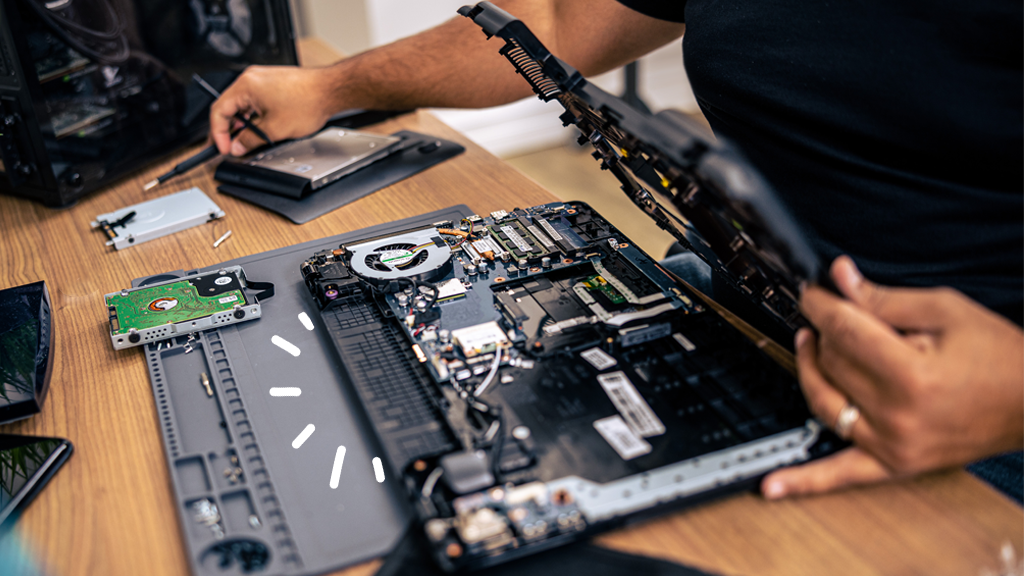
Internal Cleaning – The Ultimate Maintenance Step: Dust accumulation inside the laptop is inevitable. Over time, this dust acts as an insulator, trapping heat. For advanced users, carefully opening the laptop’s bottom panel (after checking warranty status and following an iFixit guide for your specific model) and using a can of compressed air to blow out the dust from the fans and heat sinks can work wonders for temperatures and performance. If you are uncomfortable doing this, a professional technician can perform the service.
F. Maximizing Battery Longevity and Health
The lithium-ion battery in your laptop is a consumable component with a finite lifespan. However, your habits directly influence how quickly it degrades.
-
Avoid Extreme Charge States: Contrary to old battery myths, modern lithium-ion batteries are happiest between 20% and 80% charge. Consistently draining them to 0% or keeping them plugged in at 100% for extended periods accelerates chemical aging. If you primarily use your laptop plugged in, consider using manufacturer-provided software (like Dell’s Power Manager or Lenovo Vantage) to set a charge threshold, limiting the maximum charge to 80-90%.
-
Manage Heat for Battery Sake: High temperatures are as detrimental to your battery as they are to your CPU. Avoid leaving your laptop in a hot car or in direct sunlight.
-
Calibrate the Battery Occasionally: If your battery percentage indicator becomes inaccurate, a calibration can help. To do this, fully charge the battery to 100%, then let it discharge completely until the laptop shuts down. Then, recharge it to 100% in one uninterrupted session. Doing this once every few months can help the software accurately report the charge level.
G. Mastering the Art of Safe Transportation and Storage
Physical damage from drops, bumps, and spills is a leading cause of laptop failure.
-
Use a High-Quality Laptop Bag or Sleeve: Do not simply throw your laptop into a backpack. A well-padded, dedicated laptop compartment or sleeve provides essential shock absorption.
-
Prepare for Transport: Always fully shut down or put the laptop to sleep before moving it. A running laptop with a spinning hard drive (if it has an HDD) is far more vulnerable to damage from jolts. For modern SSDs, this is less critical but still a good practice.
-
The “Clean Workspace” Rule: Keep all liquids well away from your laptop. The cost of a replacement keyboard or logic board from liquid damage is often prohibitively high. Also, be mindful of crumbs and debris that can fall between the keys.
H. Cultivating Display and Keyboard Cleanliness
A clean laptop is not just about aesthetics; it’s about hygiene and preserving the quality of its components.
-
Safe Screen Cleaning: Never use household cleaners, ammonia, or alcohol-based solutions directly on the screen. They can strip anti-glare coatings and damage the display. Instead, use a microfiber cloth lightly dampened with distilled water. Gently wipe the screen in a circular motion.
-
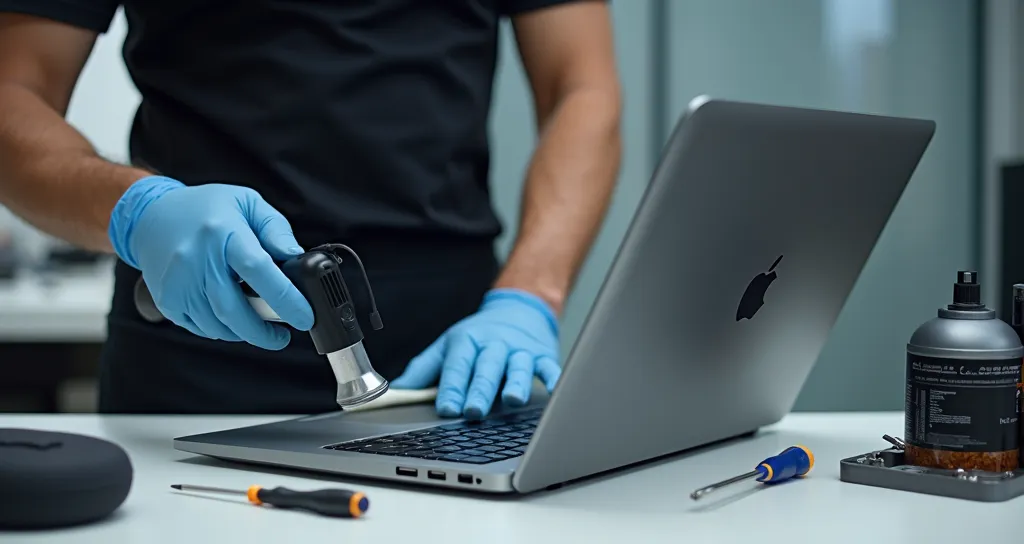
Keyboard Decontamination: Crumbs, dust, and skin oils accumulate under the keys. Turn the laptop off, turn it upside down, and gently shake it. Use a can of compressed air to blast debris from between the keys. For sticky residues on the keycaps, use a cloth lightly dampened with isopropyl alcohol.
Section C: Proactive Data Integrity and Long-Term Security
Maintenance is not just about the present; it’s about securing your digital future. Data loss can be catastrophic, and recovery is often expensive and unsuccessful.
I. Implementing a Redundant and Automated Backup Strategy
If you do not have a backup of your data, you are risking everything. The “3-2-1 Backup Rule” is the gold standard practiced by IT professionals worldwide.
-
What is the 3-2-1 Rule?
-
3 copies of your data (your primary copy and two backups).
-
2 different types of media (e.g., your laptop’s internal drive, an external hard drive, and a cloud service).
-
1 copy stored off-site (to protect against local disasters like fire or theft).
-
-
How to Implement It:
-
Local Backup: Use the built-in tools. Windows File History or macOS Time Machine are excellent for creating automatic, incremental backups to an external drive. Plug in the drive weekly, and let it do its job.
-
Cloud Backup: For off-site protection, use a dedicated cloud backup service like Backblaze, Carbonite, or iDrive. These services work continuously in the background, backing up your files to secure remote servers. This is your ultimate safety net.
-

J. Periodic System Reset and Drive Health Monitoring
Sometimes, the best way to regain lost performance is to start fresh. Furthermore, monitoring your storage drive’s health can give you early warning of an impending failure.
-
The “Nuclear Option” – A Fresh Start: If your laptop is still sluggish after all other optimizations, consider performing a system reset.
-
Windows: The “Reset this PC” feature allows you to reinstall Windows while keeping your personal files. This removes all applications and settings, effectively giving you a clean slate.
-
macOS: Booting into macOS Recovery (Command+R at startup) allows you to reinstall the macOS without erasing your data.
-
-
Monitor Drive Health (S.M.A.R.T. Data): Both HDDs and SSDs support S.M.A.R.T. (Self-Monitoring, Analysis, and Reporting Technology), which tracks indicators of reliability. Use free tools like CrystalDiskInfo (for Windows) or DriveDX (for macOS) to check your drive’s health status. If it reports “Caution” or “Failure,” replace the drive immediately.
Conclusion: Building a Sustainable Maintenance Mindset
Modern laptop maintenance is not a one-time chore but an ongoing partnership between you and your machine. By integrating these strategies into your regular routine the weekly software check, the monthly physical clean, the quarterly deep dive into storage and backups you transform from a passive user into an empowered owner. The cumulative effect of these actions is profound: a laptop that is faster, more reliable, and more secure. You will have protected your financial investment, but more importantly, you will have safeguarded your time, your productivity, and your invaluable digital life. Start today, and your future self will thank you for the seamless and uninterrupted computing experience you have cultivated.